How to Track YouTube Tutorials You Watch and Turn Them Into Actionable Notes
I watch a lot of YouTube tutorials. Some are quick tips, some are deep technical walkthroughs, and some are the kind of videos I know I should revisit later when I am working on a real project. The problem is not watching the tutorials. The real problem is keeping track of what I watched, what needs to be processed, and what I actually implemented the workflow “track YouTube tutorials”
For a long time, many of us use YouTube’s Watch Later button or simply keep browser tabs open. That works for a while, but eventually everything becomes messy. Watch Later becomes a dumping ground. Browser tabs multiply. Useful tutorials disappear into history. And when we finally need that one video about WordPress, AI Studio, Gemini CLI, SEO, or automation, we cannot find it quickly.
A better solution is to create a simple YouTube learning workflow using YouTube playlists and Obsidian.
This workflow works especially well if you watch videos on both desktop and iPhone.
Why YouTube Playlists Are Better Than Watch Later
YouTube playlists are collections of videos that you can create, edit, and manage. According to YouTube’s own Help documentation, playlists can be created and managed from mobile devices, and videos can be added from the video watch page using the Save option. ([Google Help][1])
This makes playlists perfect for tracking tutorials because they work across:
- iPhone
- Desktop browser
- YouTube mobile app
- YouTube web app
- Smart TV or tablet
Instead of using one generic Watch Later list, you can create a few focused playlists that behave like a simple Kanban board.
The Simple Playlist System
Create these four playlists in YouTube:
📥 Inbox
⭐ Process
🛠 Try Later
✅ Implemented
Each playlist has a clear purpose.
| Playlist | Purpose |
|---|---|
| 📥 Inbox | Interesting videos saved quickly while browsing |
| ⭐ Process | Videos worth taking notes from |
| 🛠 Try Later | Tutorials that need hands-on testing |
| ✅ Implemented | Videos already used in real work |
This keeps your system simple. The goal is not to build a complicated knowledge management setup. The goal is to move videos through a clear workflow.
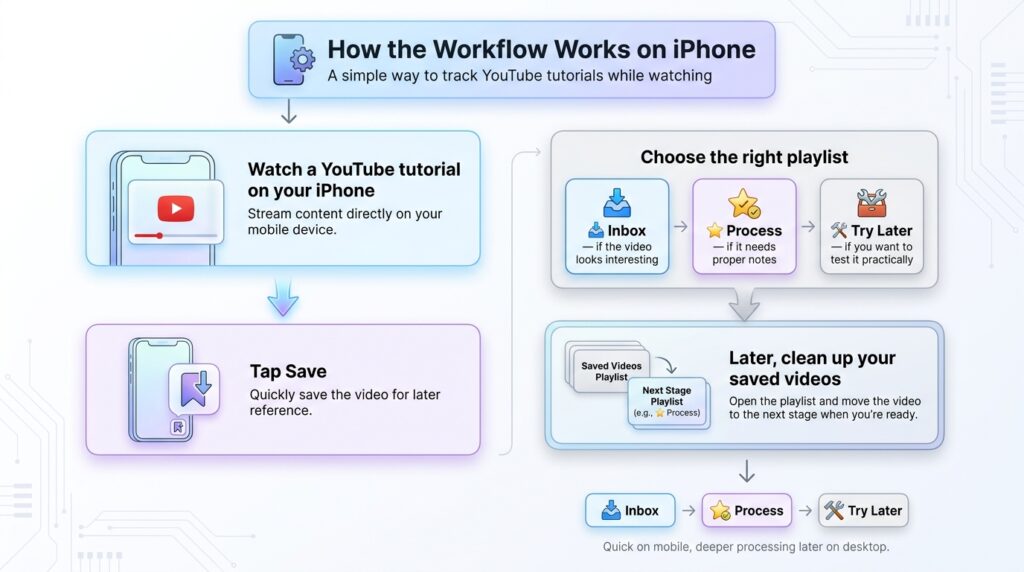
How the Workflow Works on iPhone
This is where the system becomes very useful.
When watching a YouTube tutorial on your iPhone:
- Tap Save
- Select
📥 Inboxif the video looks interesting - Select
⭐ Processif you know it needs proper notes - Select
🛠 Try Laterif it is something you want to test practically
Later, when you are ready to clean up your saved videos, open the playlist and move the video to the next stage.
YouTube’s iPhone Help documentation says you can edit playlists from the YouTube app by going to the playlist, tapping the menu next to the video, and removing it from that playlist. (Google Help)
So “moving” a video is really two actions:
- Add it to the new playlist
- Remove it from the old playlist
For example:
📥 Inbox → ⭐ Process → 🛠 Try Later → ✅ ImplementedThis gives you a lightweight tracking system without needing to type notes while watching on mobile.
Where Obsidian Fits In
YouTube playlists are great for tracking the status of videos. But they are not ideal for long-term notes, project references, or personal learning documentation.
That is where Obsidian comes in.
Obsidian Web Clipper is the official clipping tool from Obsidian. It saves web content into your Obsidian vault as Markdown files, and Obsidian states that clipped content is stored locally in your vault. (Obsidian)
This is important because Markdown notes are portable, searchable, and not locked into one platform.
The best workflow is:
YouTube Playlist = tracking system
Obsidian = knowledge system
Do not clip every video into Obsidian. Only clip videos that are worth keeping.
Recommended Obsidian Folder Structure
Inside Obsidian, create a simple folder structure:
YouTube Notes/
├── Inbox
├── Processing
├── Implemented
When a video from your ⭐ Process playlist deserves deeper notes, clip it into Obsidian.
Use a simple template like this:
# Video Title

URL:
Channel:
Date Watched:

## Why I Saved This
-

## Key Takeaways
-

## Action Items
- [ ] Try this
- [ ] Use this in a project
- [ ] Write a blog post
- [ ] Share as social content

## Outcome
-

## Tags
#youtube #learning
This small structure makes your learning active instead of passive.
The Most Important Rule
Before adding a YouTube video to Obsidian, ask yourself:
Can I explain why this video matters in one sentence?If the answer is no, leave it in YouTube.
For example:
Bad note reason:
Cool AI tutorialBetter note reason:
Shows how to use Google AI Studio to build a website prototype faster.This one rule prevents your Obsidian vault from becoming a graveyard of random saved videos.
Weekly Review Workflow
Once a week, spend 15 minutes reviewing your playlists.
Start with 📥 Inbox.
For each video, decide:
- Delete or ignore
- Move to
⭐ Process - Move to
🛠 Try Later - Clip into Obsidian
- Mark as
✅ Implemented
This weekly habit is what makes the system work. Without review, even the best system becomes cluttered.
Why This System Works
The strength of this workflow is that it separates watching from processing.
On iPhone, you should not be trying to write perfect notes. Mobile workflows should be fast. Two taps should be enough.
On desktop, you can do deeper work:
- Watch carefully
- Clip to Obsidian
- Add notes
- Create tasks
- Test the tutorial
- Write a blog post
- Apply it to a real project
This is especially useful for people learning technical topics such as WordPress, AI tools, coding, SEO, automation, or productivity systems.
“Track YouTube Tutorials” Final Workflow Summary
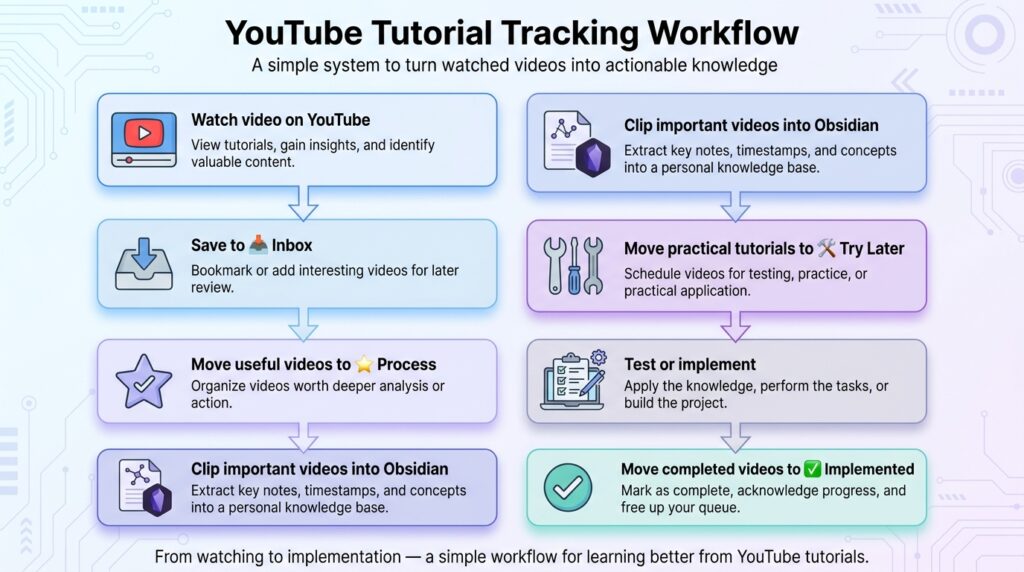
Here is the complete system:
Watch video on YouTube
        ↓
Save to 📥 Inbox
        ↓
Move useful videos to ⭐ Process
        ↓
Clip important videos into Obsidian
        ↓
Move practical tutorials to 🛠 Try Later
        ↓
Test or implement
        ↓
Move completed videos to ✅ Implemented
This turns YouTube from a passive entertainment feed into a structured learning pipeline.
You are no longer just watching tutorials. You are building a personal knowledge and implementation system.
Conclusion
If you watch a lot of YouTube tutorials, the solution is not to save everything into Obsidian immediately. That creates too much clutter. A better approach is to use YouTube playlists as your first-level tracking system and Obsidian as your long-term knowledge base.
Use playlists for quick decisions. Use Obsidian for serious notes. Review weekly. Move videos through clear stages.
This simple workflow helps you remember what you watched, decide what matters, and most importantly, take action on what you learn.